App
FrameCut
Trim and join videos on the exact frame. FrameCut re-encodes only the few frames around each cut and copies everything else untouched, so exports are fast and the rest of your video keeps its original quality. Works with H.264 and HEVC, including 10-bit and HDR, and runs completely offline.
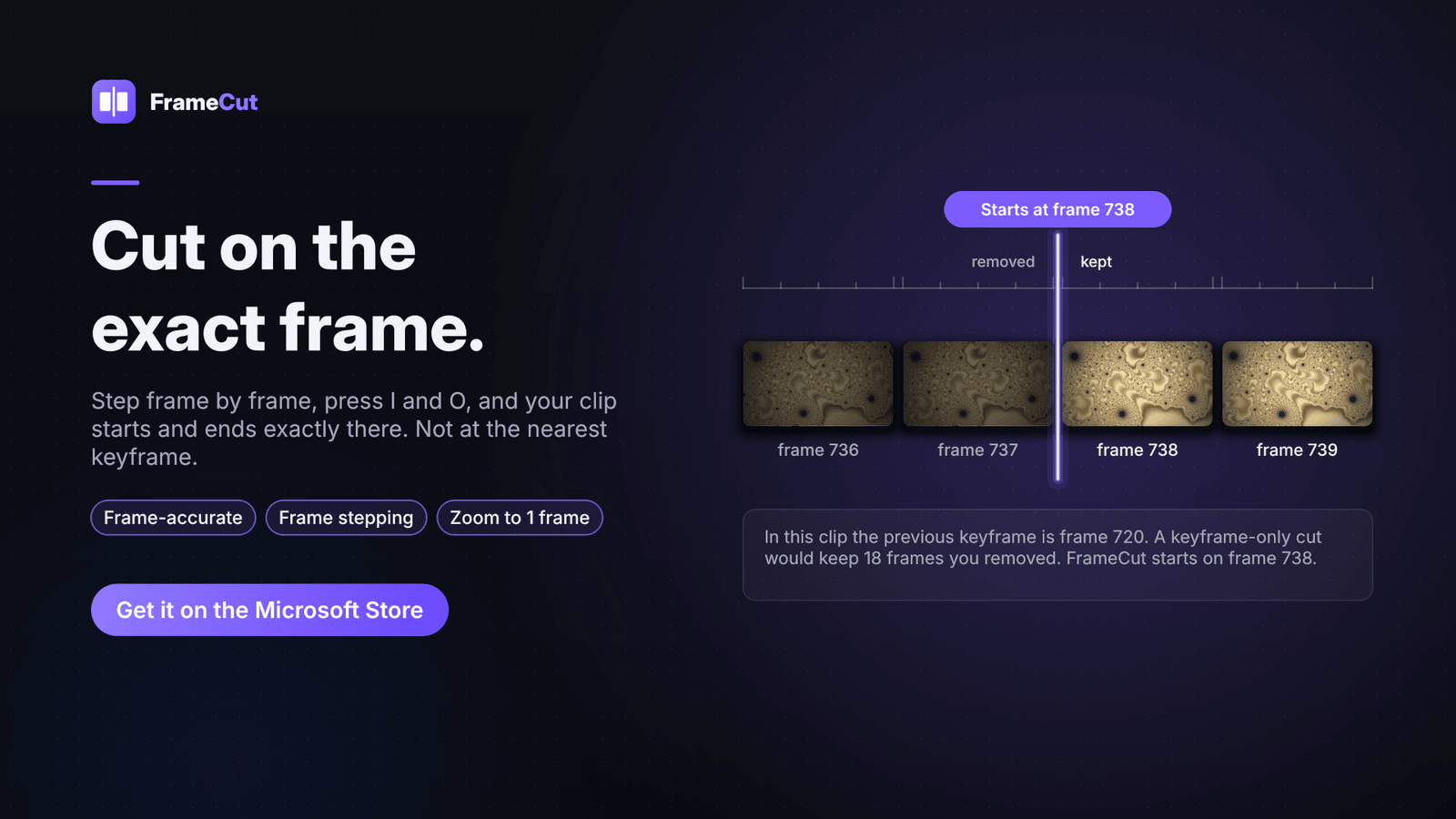

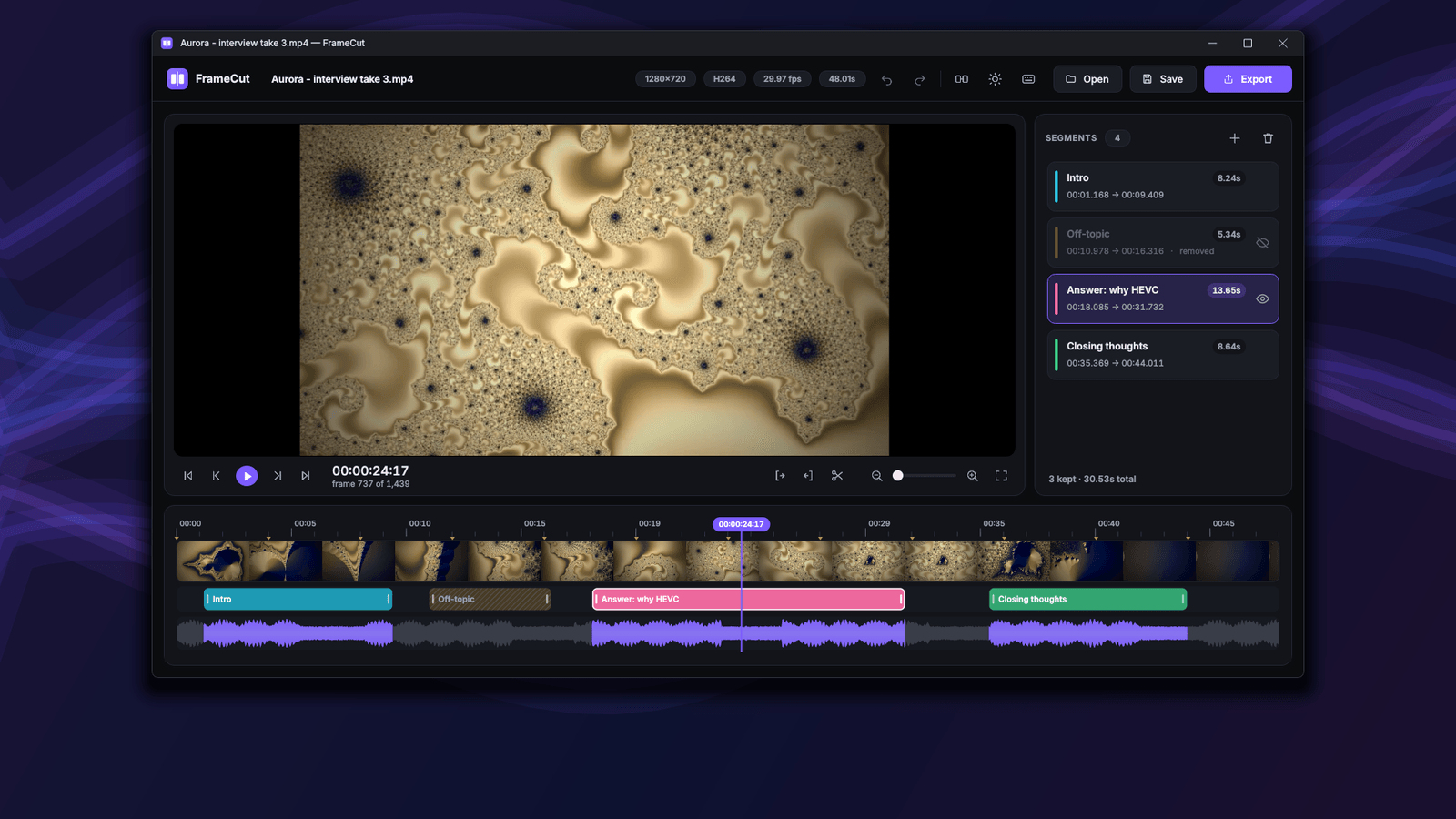
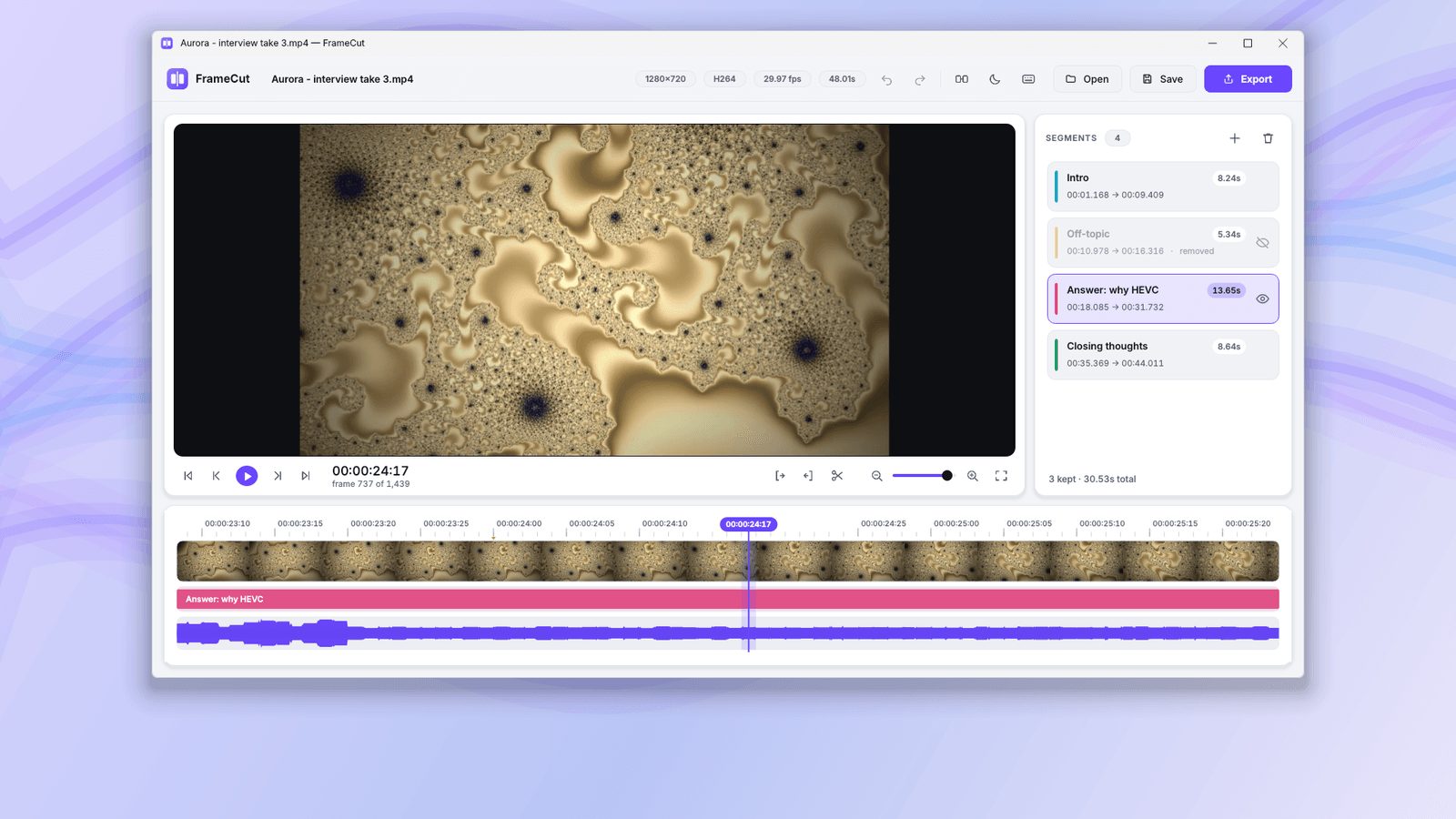
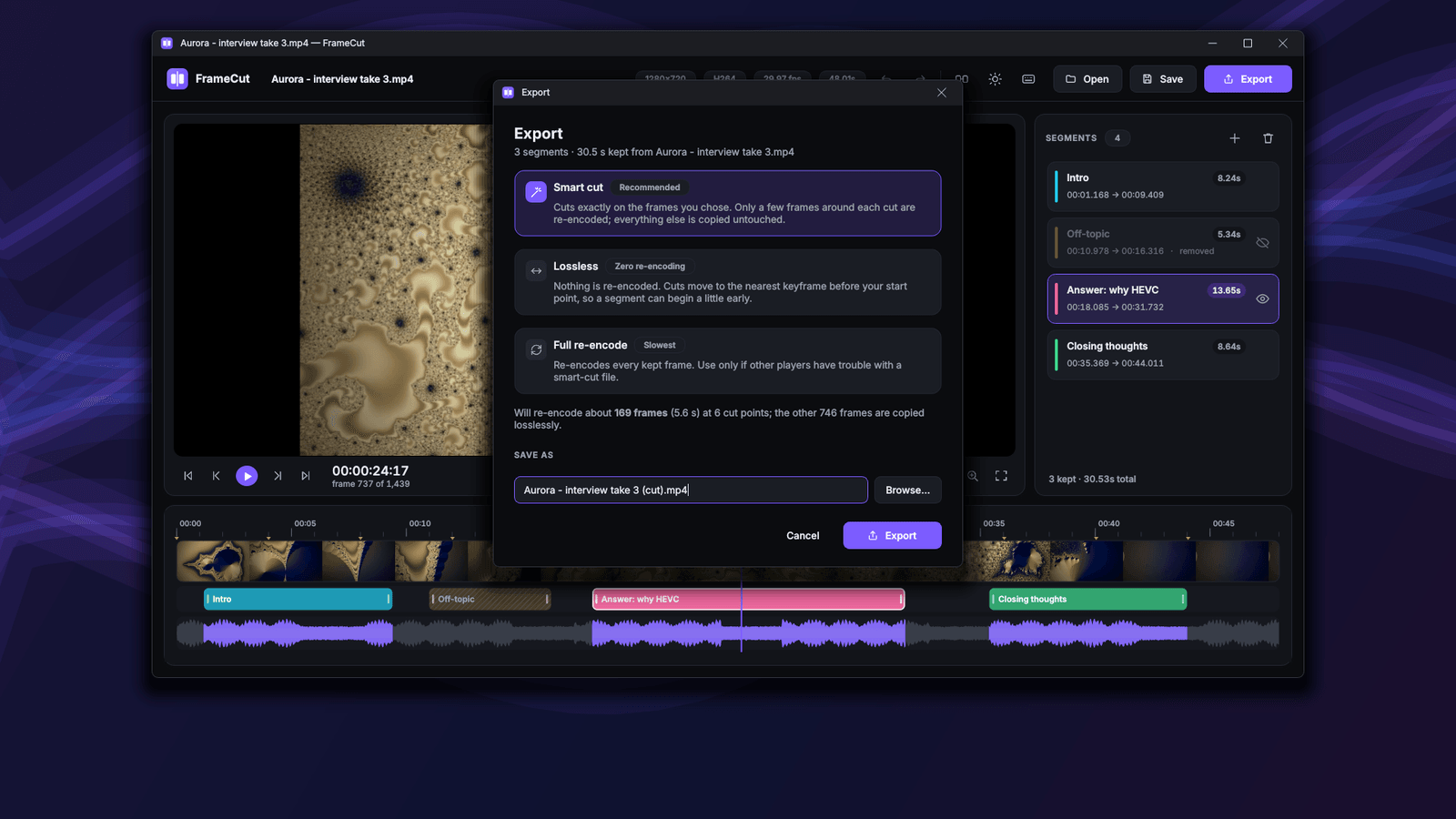
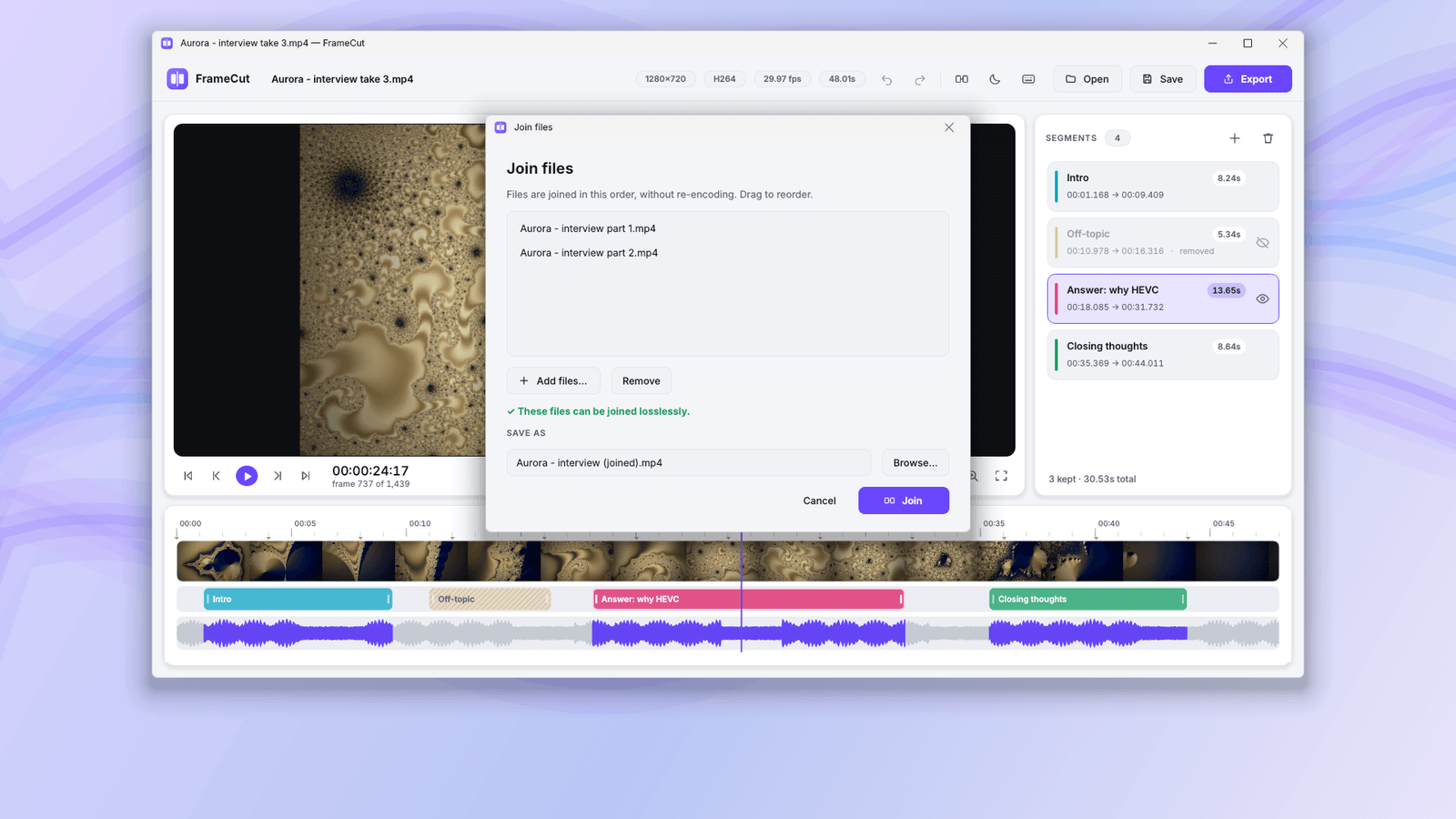
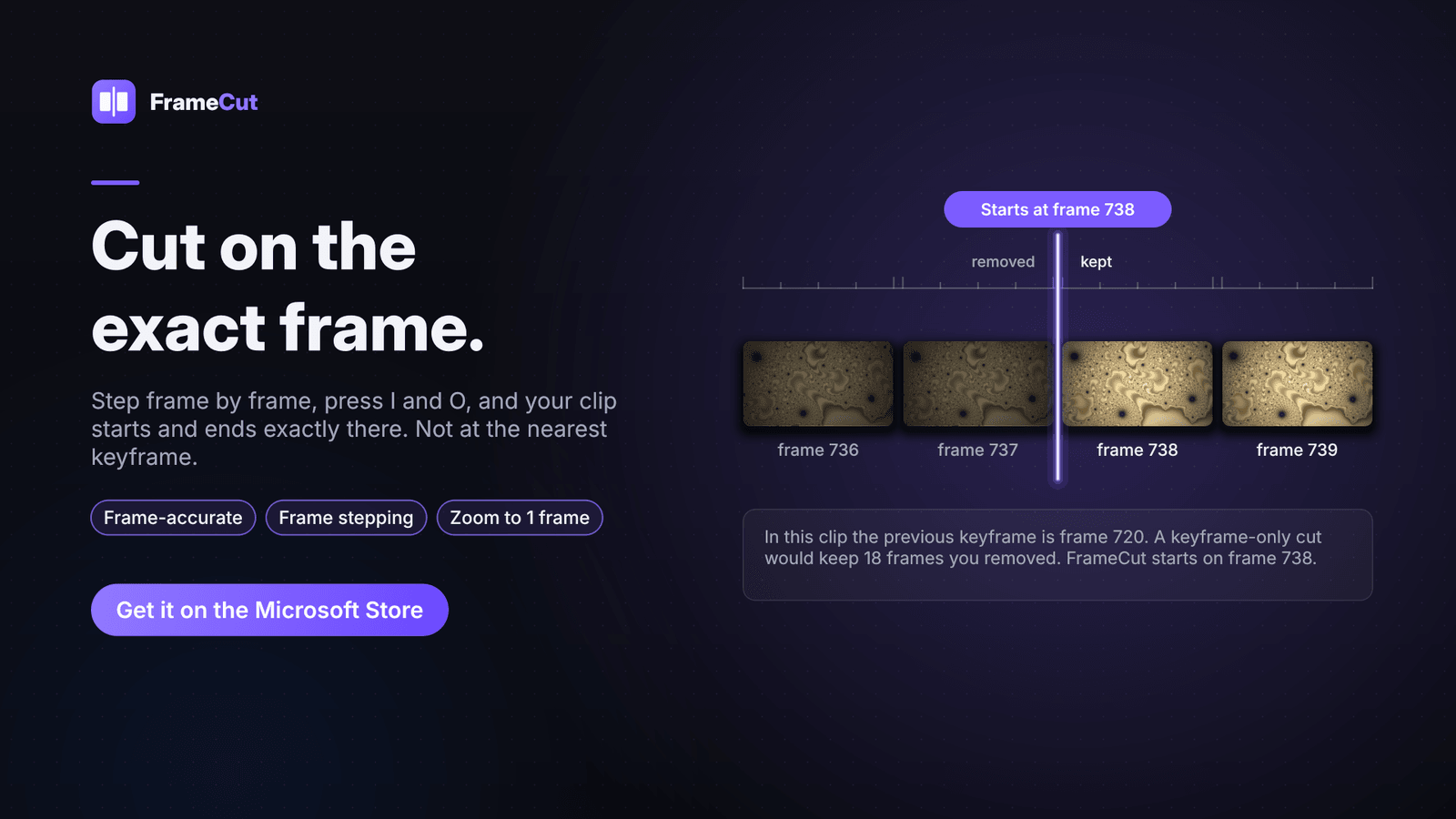
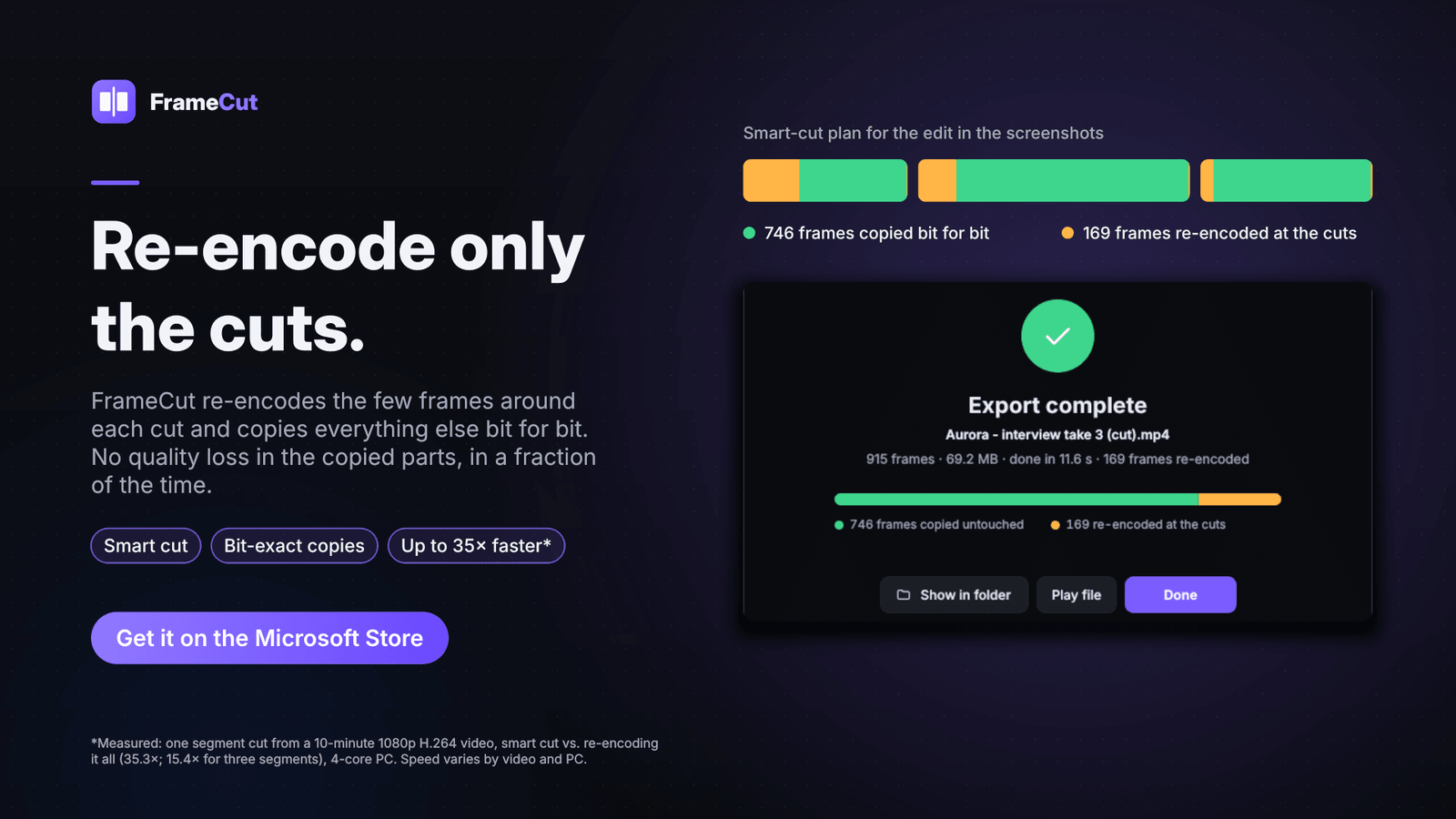
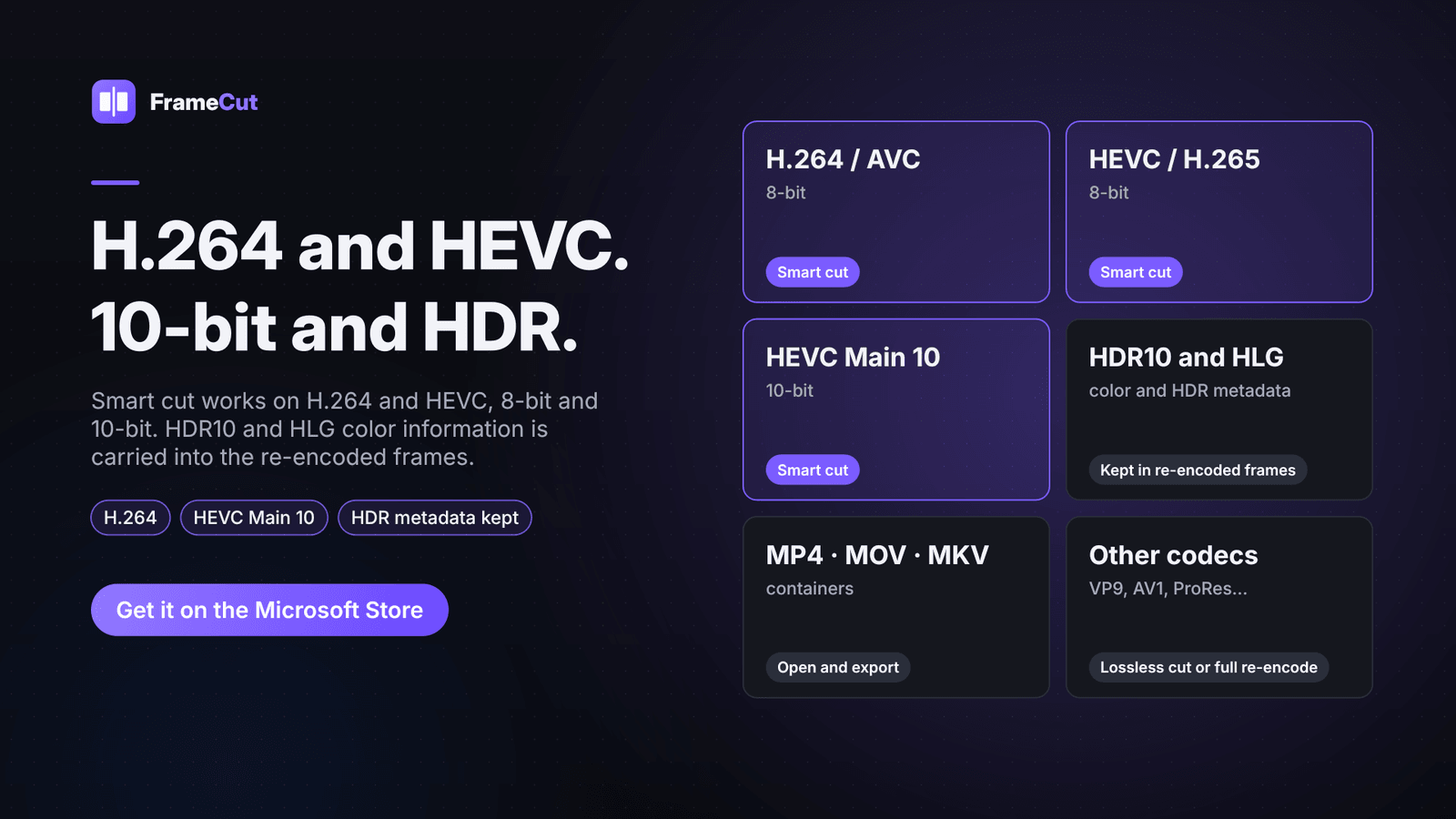
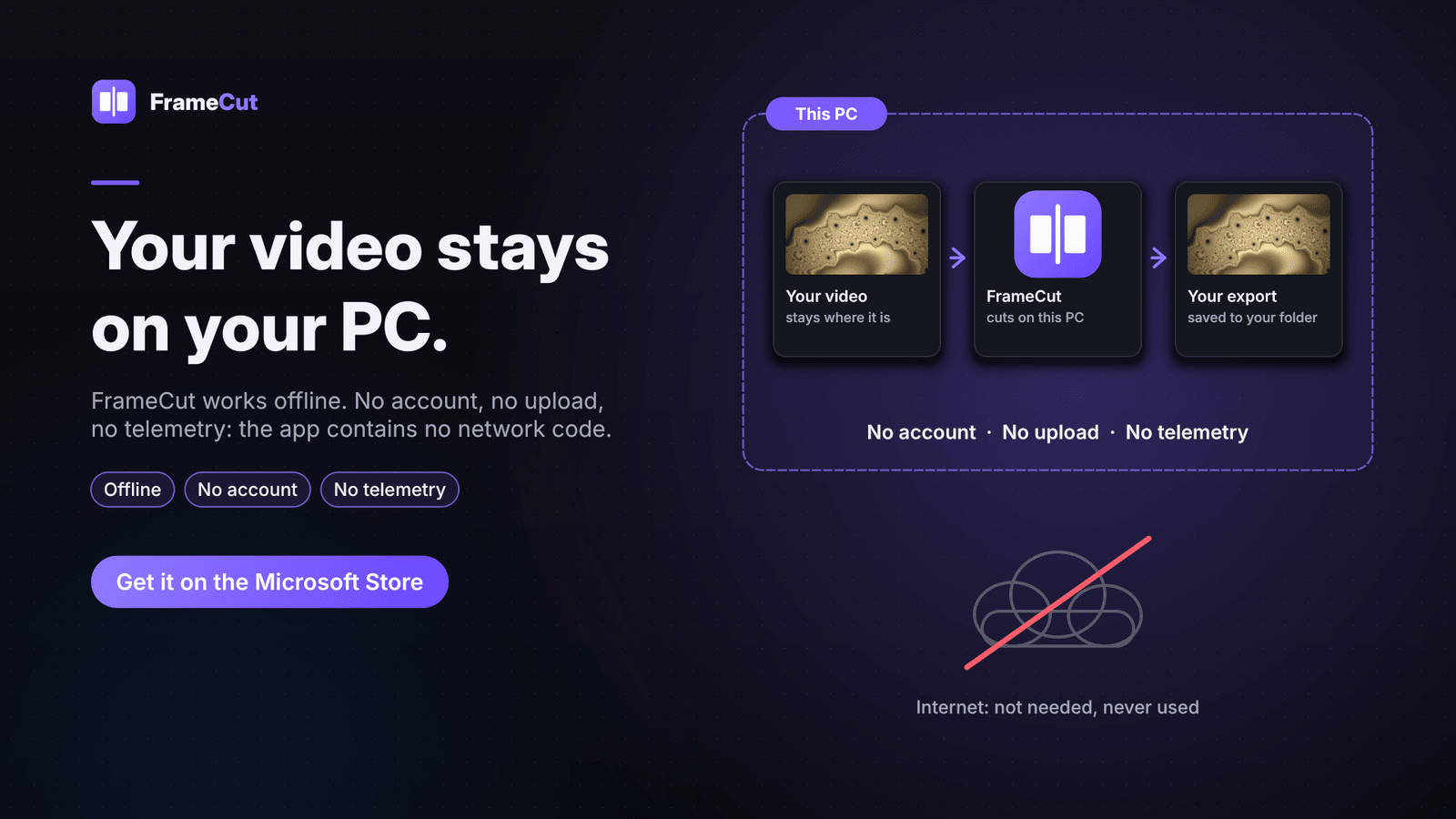
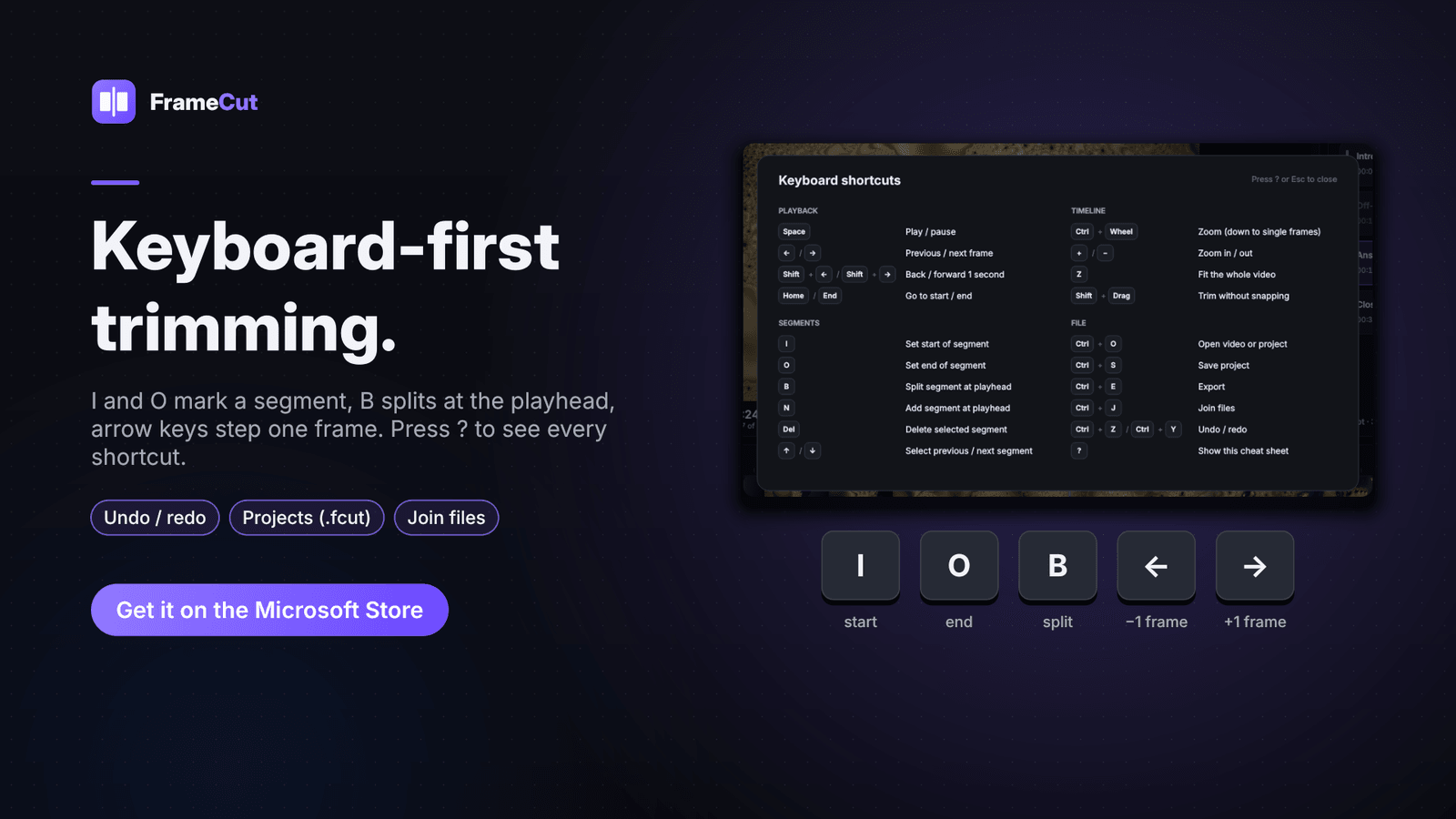
Cut your videos on the exact frame you choose, without re-encoding the whole file. Most quick trimmers can only cut on keyframes, so your clip starts a second or more too early. Re-encoding the whole video fixes that but is slow and costs quality. FrameCut re-encodes only the handful of frames around each cut point and copies everything in between bit for bit. Open a video, step frame by frame, and mark what you want to keep with I and O, or split at the playhead with B. Keep as many segments as you like — rename them, drag them into a new order, or switch one off without deleting. Three export modes: Smart cut (frame-accurate), Lossless (nearest keyframe, no re-encode), and Full re-encode. Smart cut for H.264 and HEVC, 8-bit and 10-bit; HDR10 and HLG colour information is carried into re-encoded frames. Join compatible clips end to end without re-encoding. Timeline zooms to single frames with thumbnails and an audio waveform. Keyboard-first editing, undo/redo, and .fcut projects. Works offline: no account, no upload, no telemetry. Windows 10 version 1809+ (x64).
- Frame-accurate cuts: your clip starts and ends on the exact frame you choose
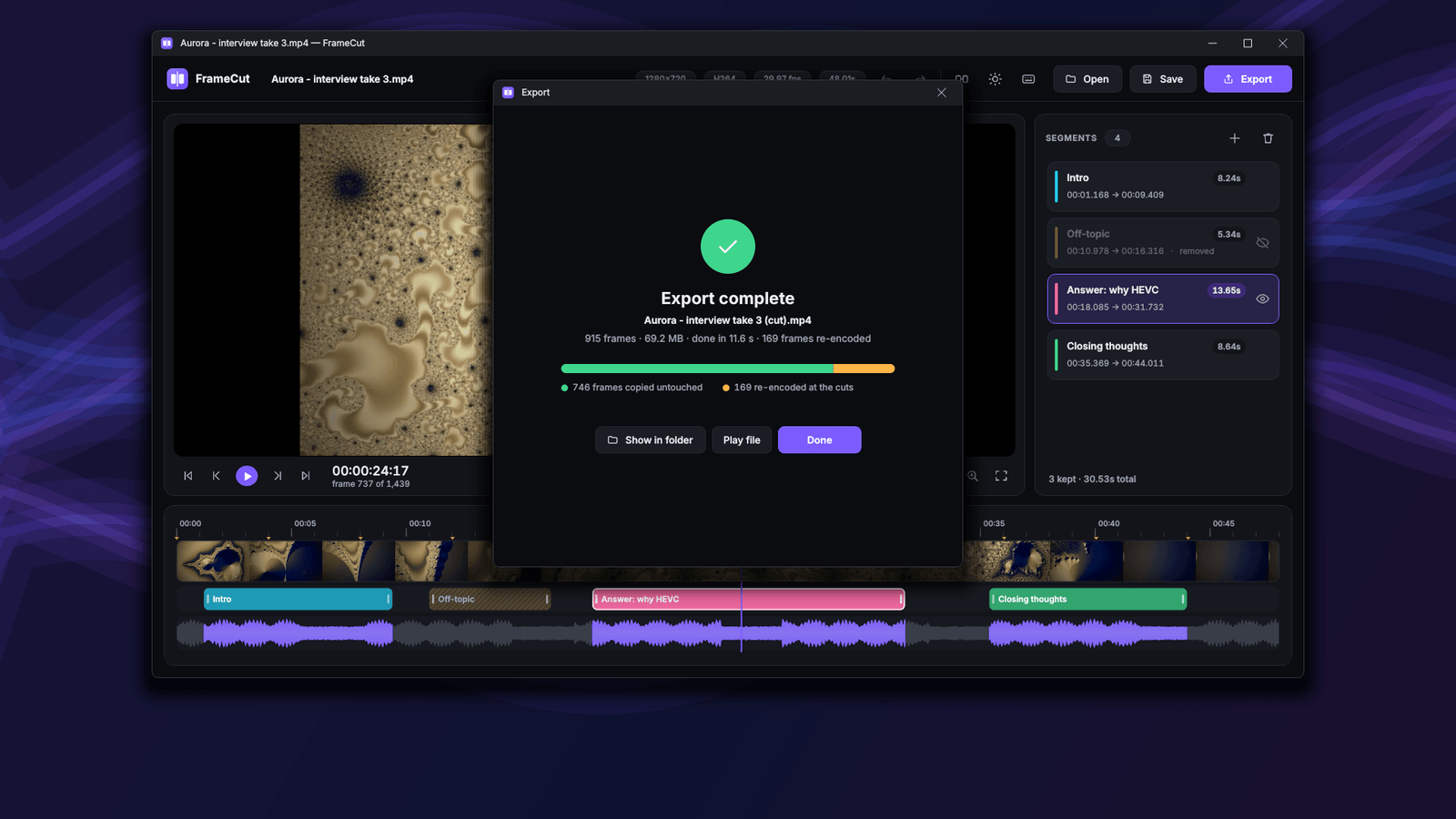
- Smart cut re-encodes only the frames around each cut and copies the rest bit for bit
- Shows how many frames will be re-encoded before you export
- Lossless mode: cut on keyframes with no re-encoding at all
- H.264 and HEVC, 8-bit and 10-bit; HDR10 and HLG colour kept in re-encoded frames
- Multiple segments: rename, reorder, or switch them off without deleting
- Join compatible files end to end without re-encoding
- Works offline: no account, no upload, no telemetry
Screenshots